
eCommerce
WebCharge is an ecommerce platform offering numerous options. Products can be sorted by brand or by department (e.g. by types of products), discounts can be applied, several types of shipping are available, and the use of vouchers and codes is possible.
This guide will show you how to use the platform to customise your ecommerce website.
Logging into WebCharge
To log into WebCharge, go to http://cms.webcharge.co and enter the email address linked to your account and your password.
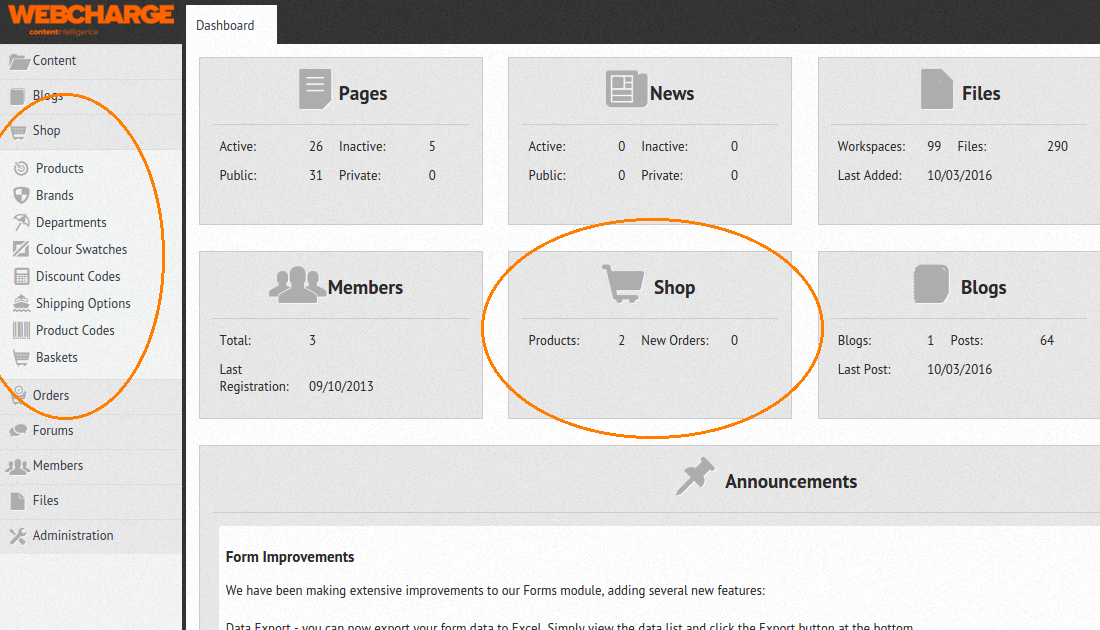
The Shop is directly accessible through the Dashboard, as well as through the menu on the left hand side.
Products
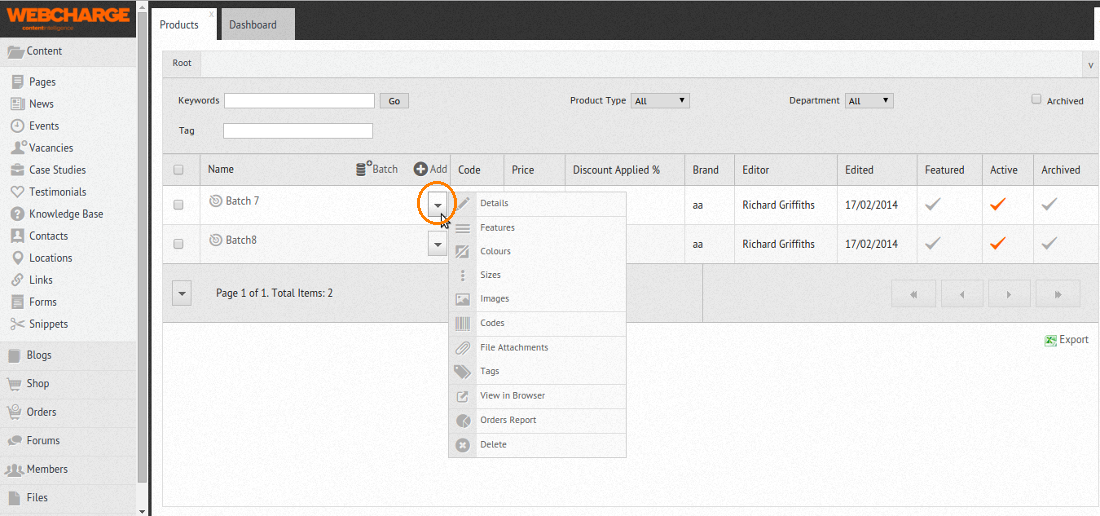 When adding a product, you can fill in a wide range of information: product description, features, colours, sizes, codes (mostly for your own use), and images of the products.
Depending on how your website is organised, you can also tag your products (this can be used to feature them in key locations on your site, for instance) or attach documents to them (such as technical sheets).
The “Orders Reports” feature allows you to know exactly who purchased an item, when, the quantity ordered, and the status of the order (order confirmed, despatched, etc.)
Should you wish to, you can export all the data regarding the products (from colour swatches to product details) through the export button at the bottom of the page.
Adding a product
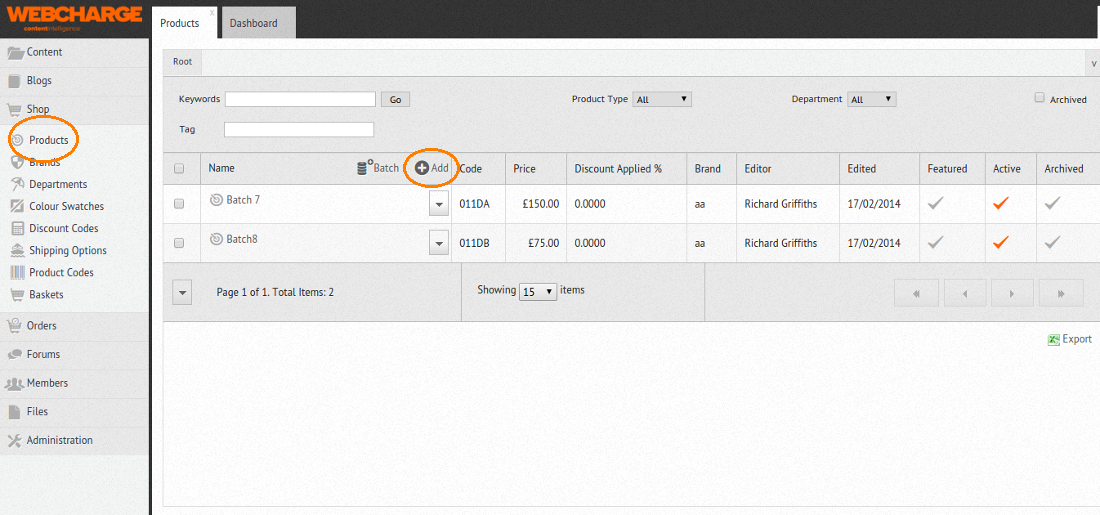
To add a product, click on Products > Add > Details
Most of the product data can be added through Details.
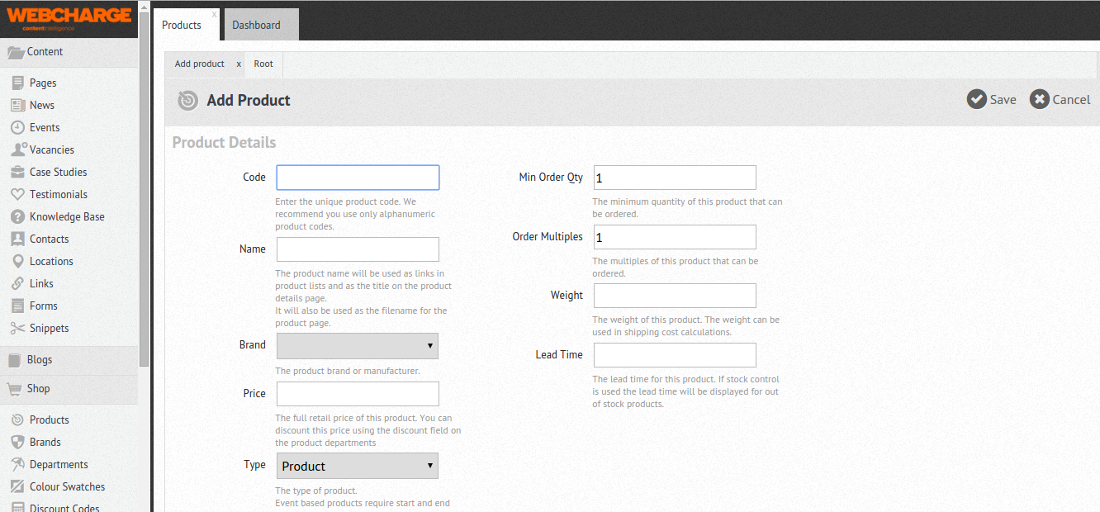
Product Details
- Code: the reference of the product; it must be unique;
- Name: product name, used in links and as a title on the product page;
- Brand: product brand or manufacturer (see below to find out how to add a brand);
- Price;
- Type: you can choose between product, voucher and event;
- Minimum Quantity: set a minimum quantity of products per order;
- Order multiples: you can decide that some products can only be ordered by pair or more;
- Weight: can be factored in to calculate shipping costs;
- Lead time: when a product needs to be ordered. Can be shown if a product is out of stock.
Product Description & Page Head Details
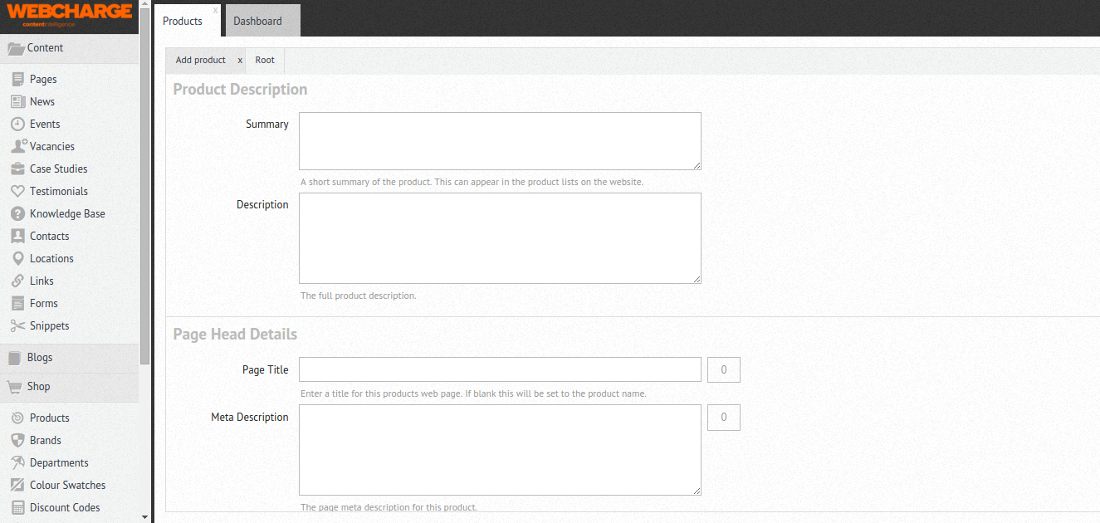
- Summary: short description of the products; can be used on the website, where the products are listed;
- Description: full description of the product.
Page Head Details are used for SEO (Search Engine Optimisation) purposes.
- Page Title: it appears at the top of the browser and on Google search results, and should be around 60 characters long;
- Meta Description: it appears on Google search results and should be around 155 characters long.
Display information and Department allocation
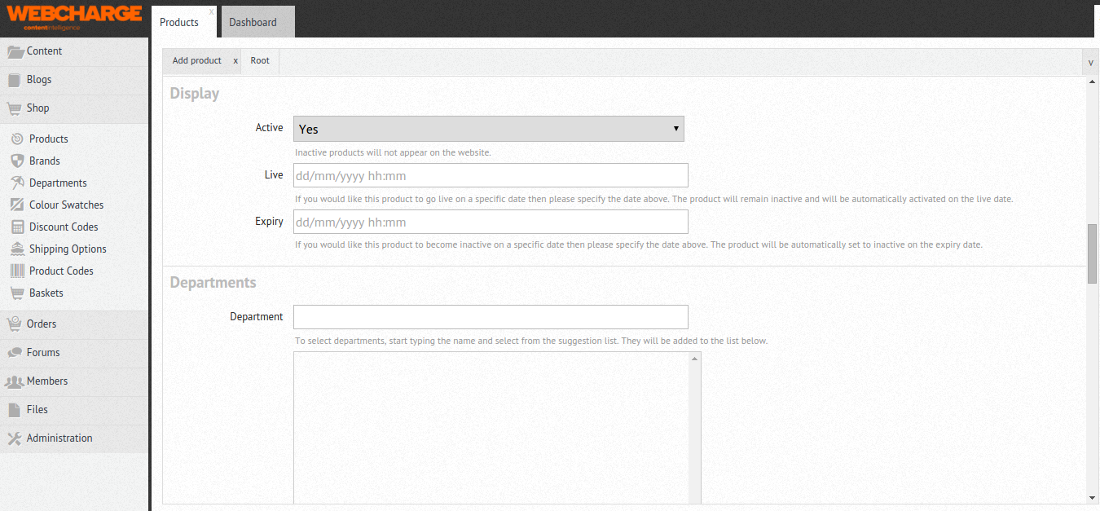
- Display information: by default products are made live as soon as they are added. They can however be scheduled to go online and offline via the Display feature;
- Departments: a Department can also be allocated to the product (see below how to create a Department).
Features and Tags
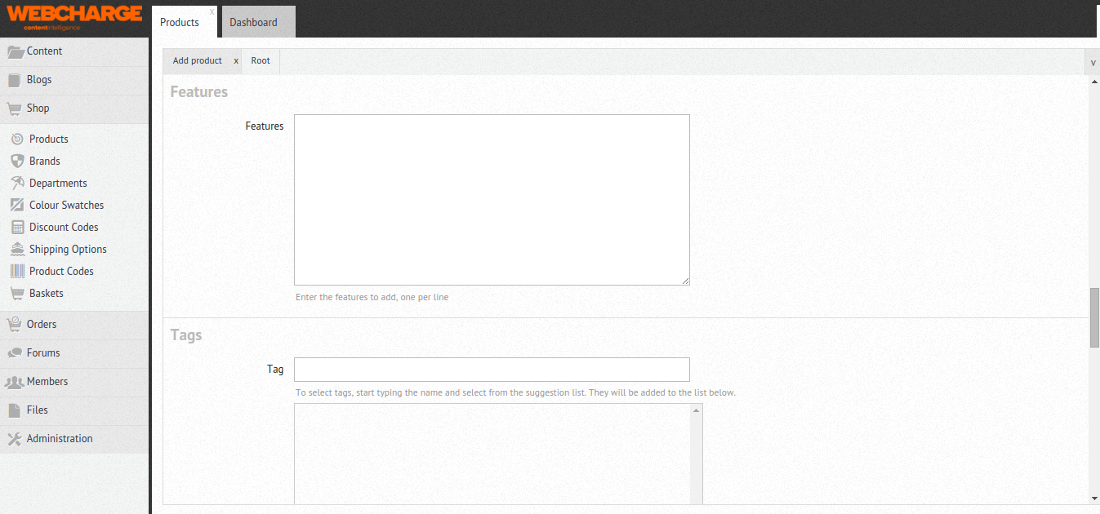
- Features: allows you to list the features of a product, one feature per line;
- Tag: if your website uses tags, tag a product for it to appear in a specific location (for instance as a Featured product)
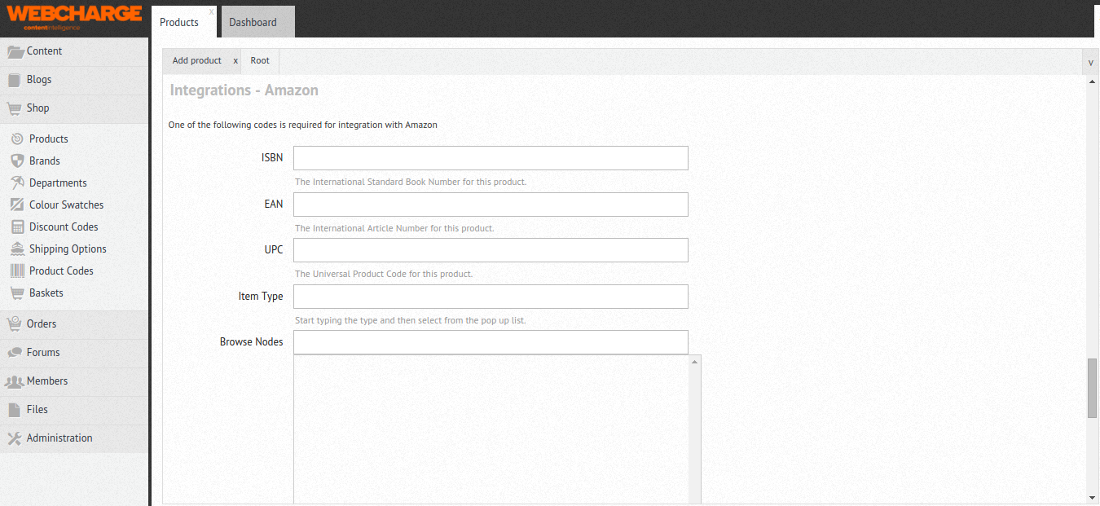
Amazon Integration
WebCharge allows integration with Amazon
Brands
A Product can be linked to a Brand.
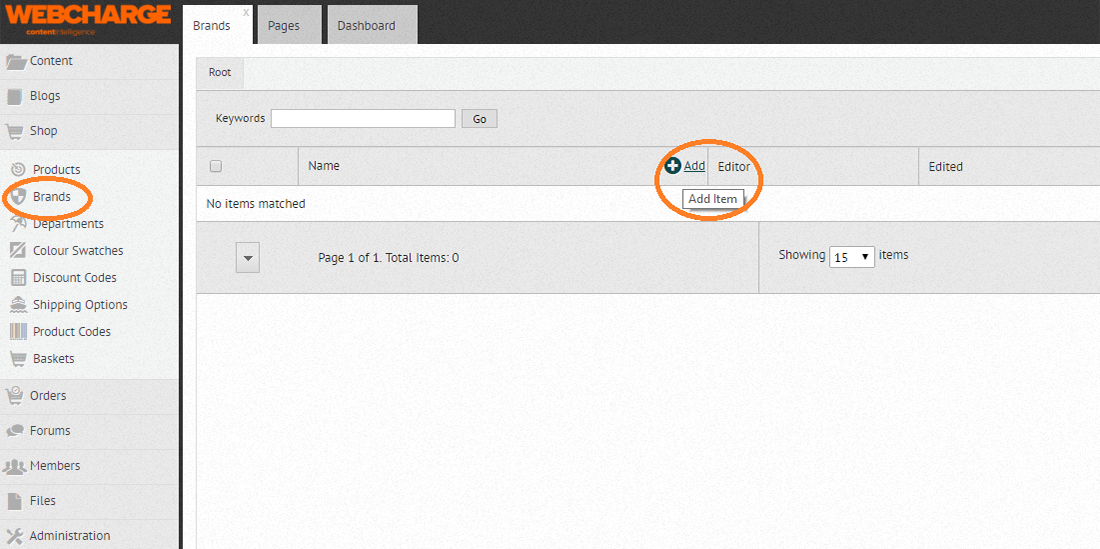
To do add a brand, click on Shop > Add
Once a Brand has been added it can be selected when you add a Product or from Products > Details (see above)
Adding a Brand
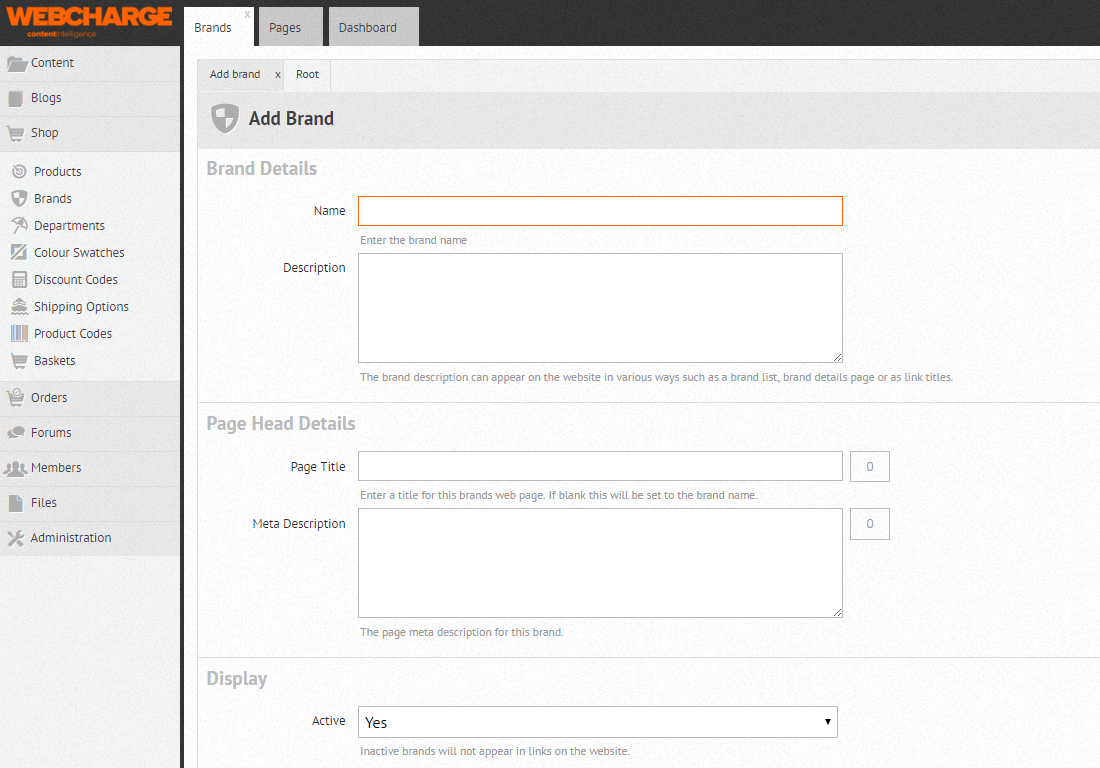
Adding a brand is straightforward; it only requires a Name and a Description.
You can also add SEO data with a Meta Title (max. 60 characters) and a Meta description (max. 155 characters) which will show on search engines when the Brand page appears for a search result.
Departments
A Product can be allocated a Department, allowing you for instance to gather similar products from different Brands in one place.
Departments can also be used to allocate Discounts to Products.
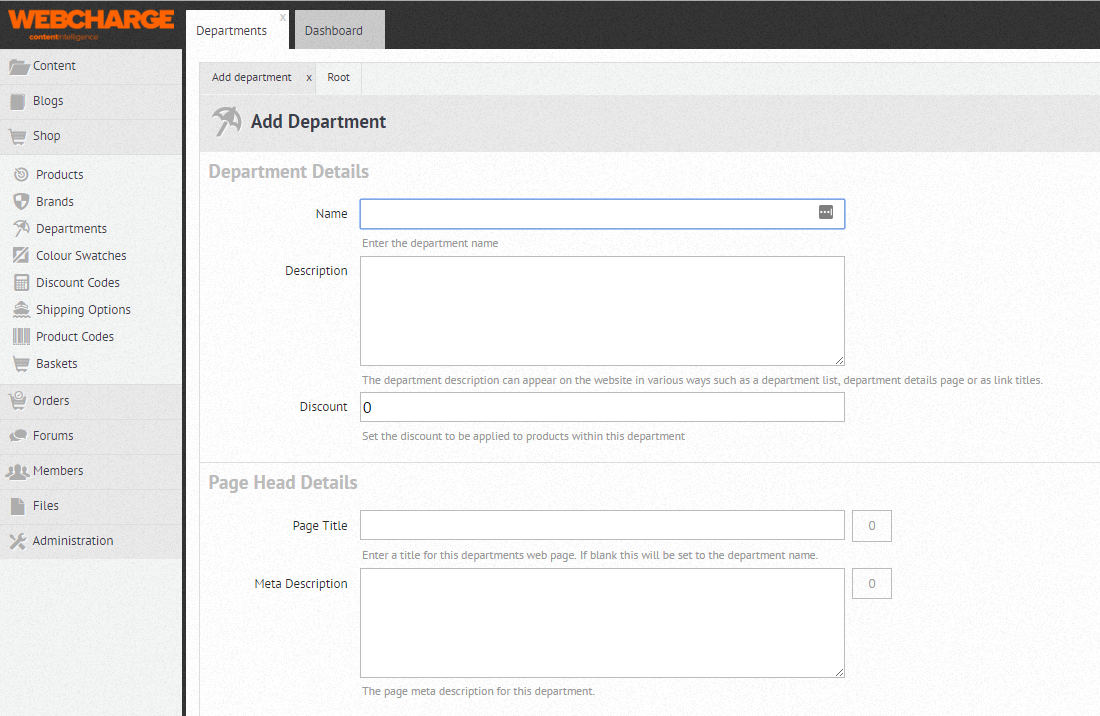
To add a Department, click on Departments > Add
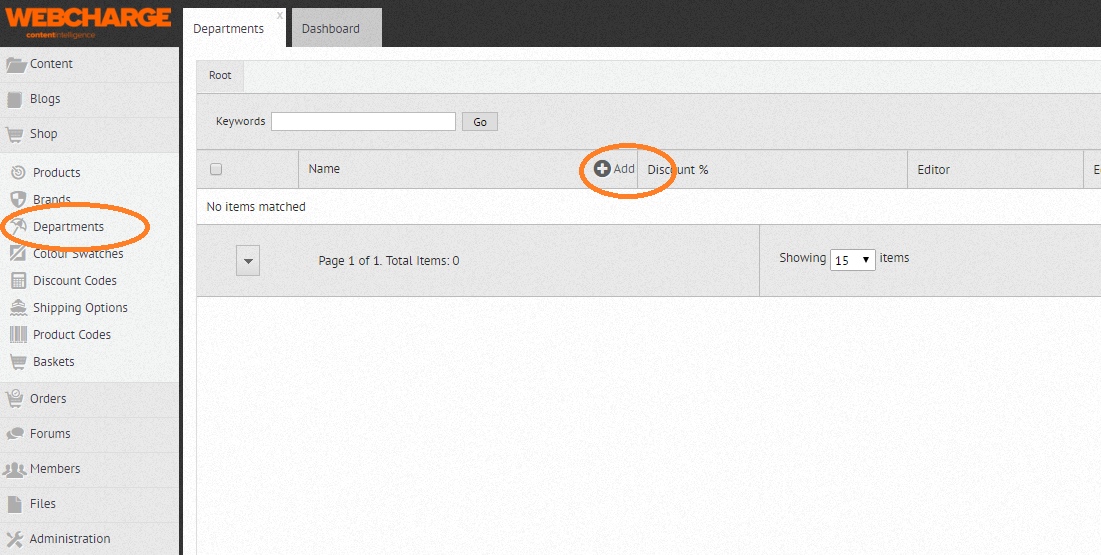
To create a Department, give it a name and write a description.
- Name: you can choose whether the name (and the Department) are displayed on the website;
- Description: depending on how the website is constructed, the description may appear in various ways on the website - on a page listing the Departments, as a description on the Department page, as link titles, etc.;
- Discount: Departments can be used to apply discounts on a selection of products;
- Page title & Page description: we advise to write a compelling title and description for SEO purposes if the department page is displayed on your website.
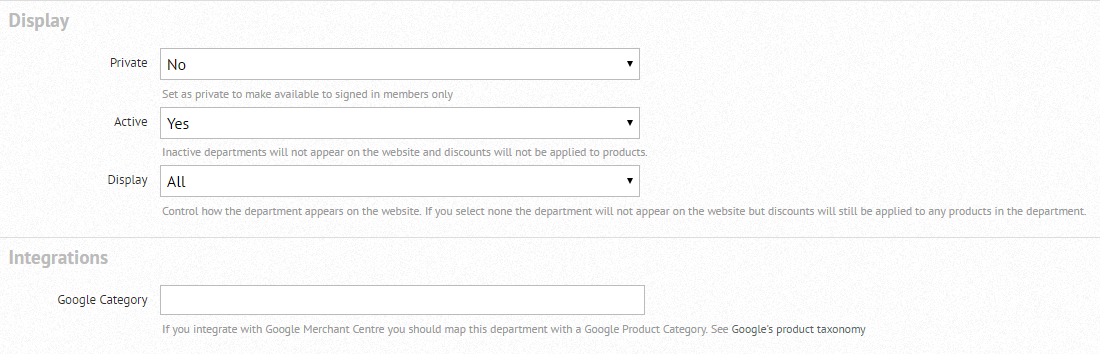
Display
This feature allows you to choose whether the Department appears on the website
- Private: a private Department will only be shown to members who are signed in;
- Active: inactive Departments will not appear on the website and discounts won’t be applied. If you want to use the department again so would rather not delete it entirely, you can make it inactive;
- Display: choose how your Department is shown when active: All (visible to everyone), None (doesn’t appear on the website), Sitemap (appears only on the sitemap ), Signed in (appears to signed in members only), Signed out (for non members or members who are not signed in)
Integrations
Webcharge allows you to sell your products with Google Merchant Centre. You can enter a Google Product Category for the Department.
Colour Swatches
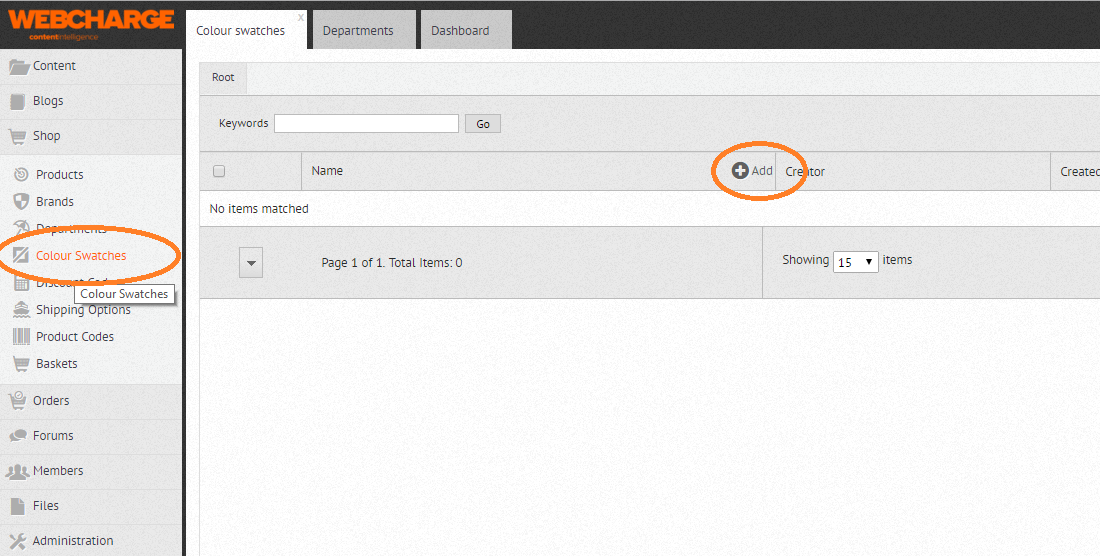
If your products have specific colour and colour names, create a Colour Swatch for each.
Simply enter the name and add a picture.
Link a Colour swatch to a Product by selecting a Product, clicking on the arrow next to it > Colours > Add
Colour swatches, like Brands, Departments, Products, etc., can be made inactive at any time if you do not want to use them at the moment but intend to use them again in the future.
Discount Codes
If you want to create a special voucher or discount code that customers will need to use at checkout to obtain a discount, use the Discount Codes feature.
To create a Discount Code, click on Shop > Discount Codes > Add
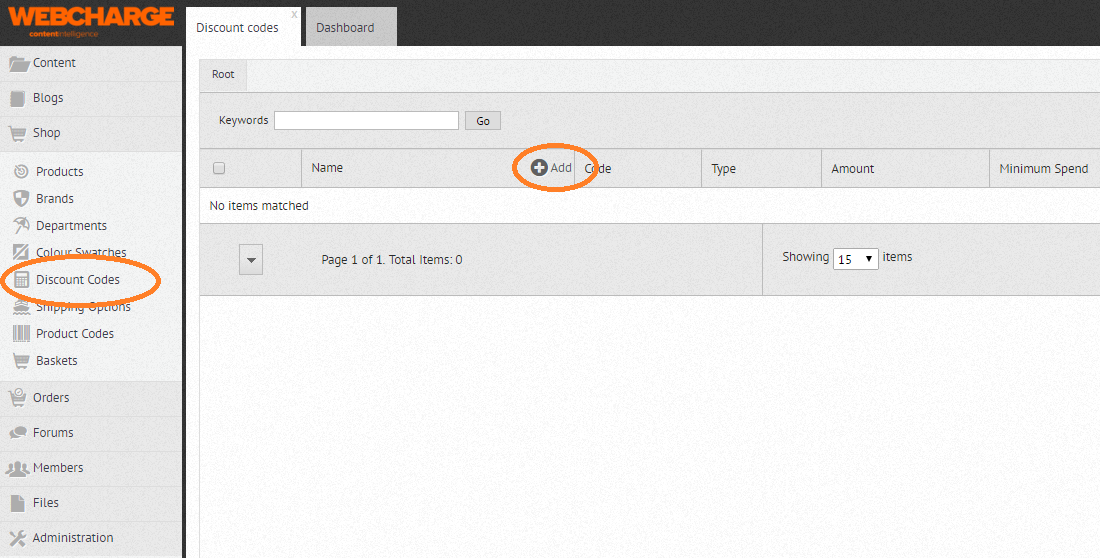
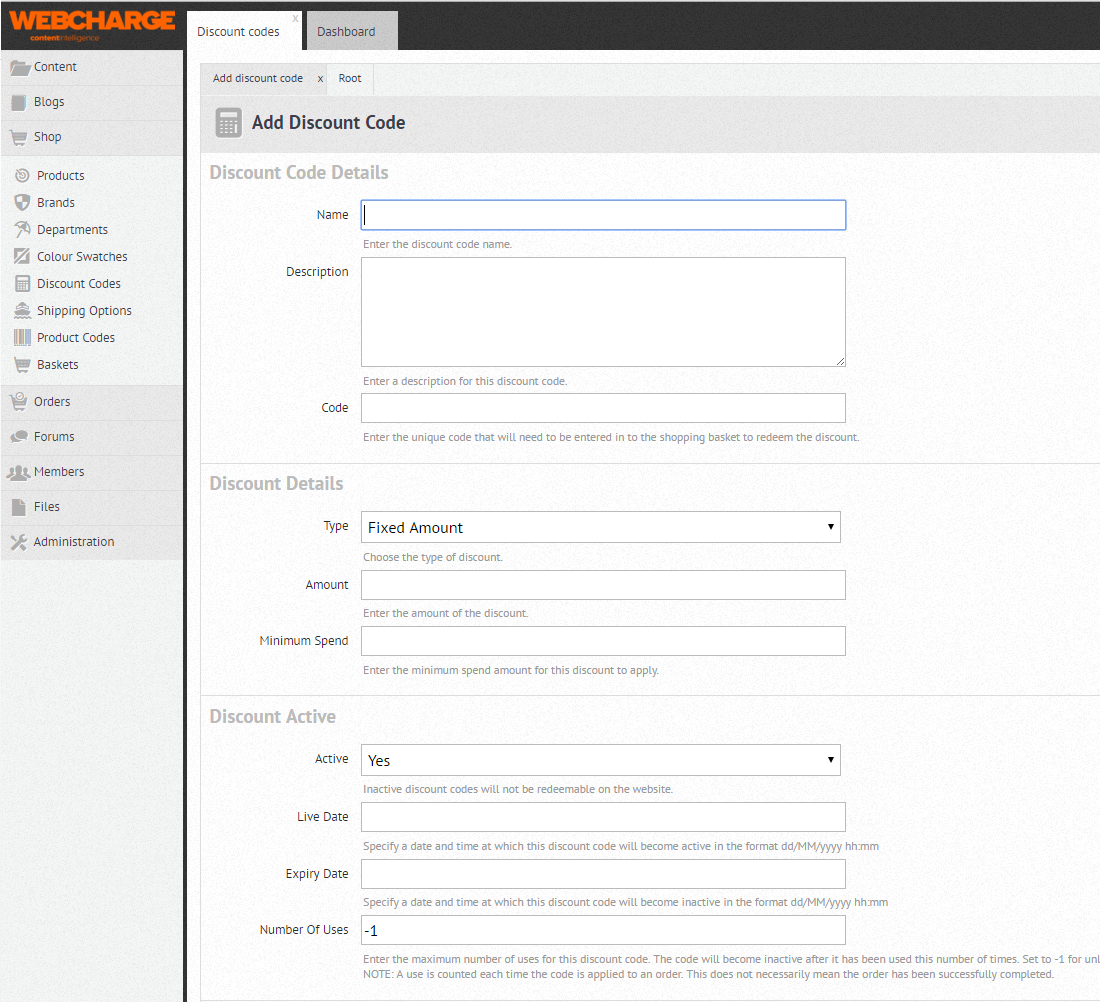
- Name: choose a descriptive name - for your own use;
- Description: describe briefly the discount - this is generally for your eyes only;
- Code: enter the unique code that your customers will have to enter at checkout to redeem the discount;
- Type of discount: choose between Fixed Amount, Percentage or Free Shipping;
- Amount: enter the amount of the discount. If Percentage was selected, 10 will represent a 10% discount. If Fixed Amount was selected, 10 will represent £10;
- Minimum Spend: enter the minimum spend necessary for the discount to be valid.
Shipping Options
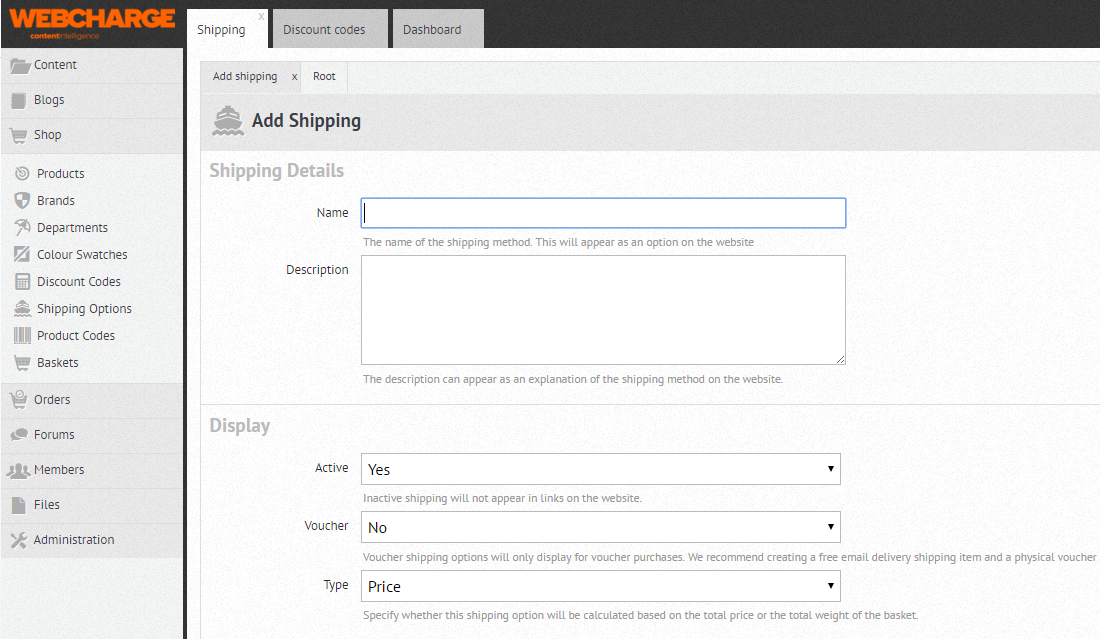
To add a Shipping Option, click on Shop > Shipping Options > Add
- Add a Name (ex. Shipping mainland UK);
- Add a Description (ex. Delivery in 48 hours);
- Select Yes or No if shipping Vouchers are applicable (will only appear for purchases made with a voucher);
- Specify under Type whether the shipping will be calculated according to the Price or the Weight of the item.
Product Codes
To add a Product Code, click on Shop > Product Codes > Add
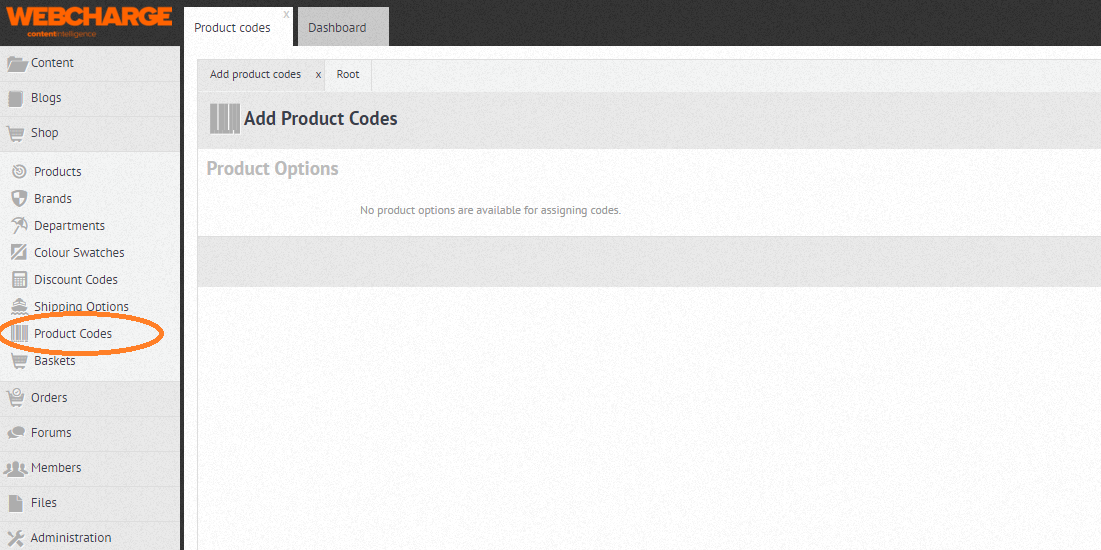
You will see the products you have added to the shop appear;
- Enter next to the product you’ve chosen its Code;
- Select the Type of code (Internal, ISBN, EAN, UPC or ASIN);
- Modify the stock if applicable.
Reports
Access statistics regarding your orders, monthly and annual sales via our Reports, under Orders > Reports.
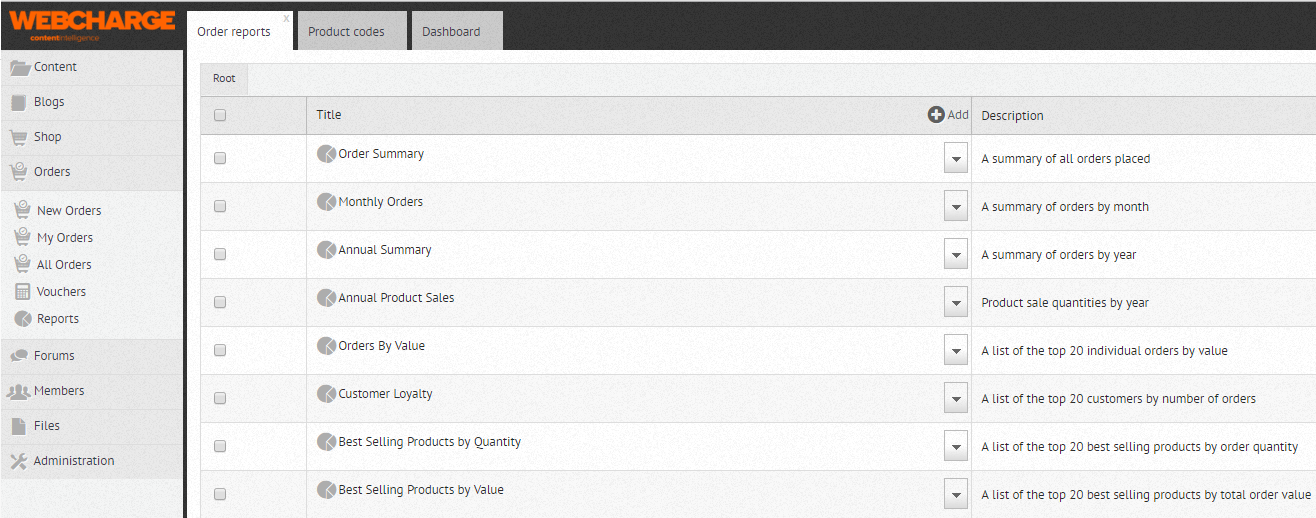
The various reports available are as follows:
- Order summary: a summary of orders placed - shows the latest order, orders for the current month (with a comparison with the previous year), a summary of order for the current year, to be compared with the same period the previous year, and an overall summary (sales since the launch of the ecommerce website);
- Monthly orders: shows orders by month, since the beginning of the records;
- Annual summary: shows orders per year, since the beginning of the records;
- Orders by value: lists the top 20 individual orders by value;
- Customer loyalty: lists the top 20 customers by number of orders;
- Best selling products by quantity: lists the top 20 best selling products by order quantity;
- Best selling products by value: lists the top 20 best selling products by total order value.