
Tagging
Managing Tags
You can manage your tags within the administration submenu of WebCharge.
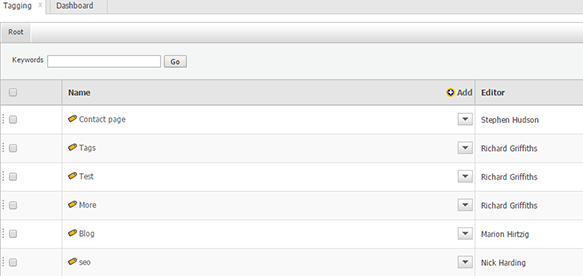
The picture below shows a list of top level tags created.
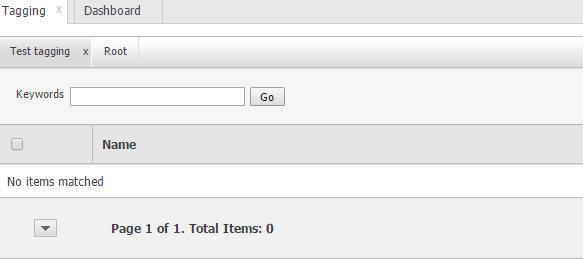
When you click on a top level tag you automatically go into the sub group of that tag - see below:
You can add a top level or second level tag easily by clicking the "Add" button and following the instructions - see below:
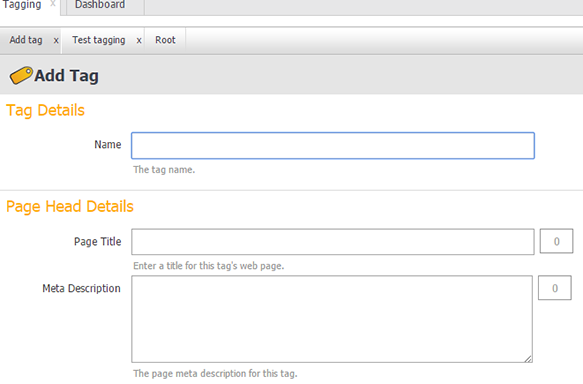
You can create as many tags within a group as you want just by selecting the current tag and adding a new one.
Hovering over the tag box will give a reference number which is used as an ID reference for developers, you can also move the tags around and reposition tags accordingly.
You can simply use tagging to group your content, so for example, you can use tagging to group departments together. When you create your contacts in WebCharge you simply add a tag with the same name to the contacts you want to group together. For example, if you have profiles of your team members, you could group them under "marketing", "HR", "admin", "sales" etc. Depending on the nature of your website, the tagging feature can be used to display certain contacts on a webpage, or perhaps group together news etc. To find out more about how tagging can benefit your website, please speak with your WebCharge representative.