Document Management
Workspaces
Managing documents within WebCharge is simple and very similar to managing files on your computer. You simply create Workspaces (similar to folders) using the Add Workspace button and then upload documents within the workspaces using the Add Files button.
To create a workspace and add files, you first need to click on "Files" on the navigation panel on the left, and then "Document Management". Next you simply click "Add Workplace" and then upload documents using the "Add Files" button or by dropping the files into the box at the top of the page. Clicking "Add Files" allows you to upload up to 5 files at a time by browsing for them on your computer.
Files
Files are essentially images, videos, PDFs etc. that you have added to your website. They are stored in Workspaces which are located under the "Document Management" heading found under "Files" on the navigation panel on the left. WebCharge supports a wide range of file types from jpeg, PDF, Bitmap images to Adobe PDFs and most types of videos.
Attachments
Once you have finished adding content to a blog, news article or event, there might be times when you also want to display a featured image at the top of the page, or a PDF presentation at the bottom. When this is the case, you can take advantage of Attachments.
On WebCharge there are currently two ways of adding attachments to a blog or news article - File Attachments and Content Attachments. File Attachments are for things like featured images, header images or PDF documents you want displayed at the top or bottom of a page or on a news list for example. Content Attachments are for things that you want displayed in the content, such as snippets for example.
To upload an attachment, locate the blog, news article or event you wish to add an attachment on and then click on the drop down arrow, and click on either File Attachment or Content Attachment - see image below:
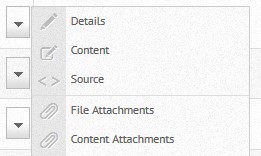
Once here, you can upload images, PDFs etc. to the article, blog or event and reorganise them accordingly to your specifications. Alternatively, you can upload the files to the Document Management Area and search for them using the search bar which can found after clicking "Add". All files you upload through the attachment screen will be added to your Document Management automatically.
Check Out and Check In
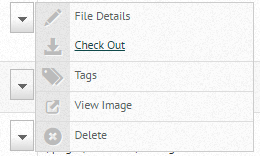
WebCharge also provides a convenient Check Out feature. This allows you to check a file out and prevent other users from editing the file until you check it back in. When you check in a file you can choose a file of any name (as long as the file type is the same as the original) and when the file is uploaded it will be renamed to overwrite the original file. This will preserve any links you have created to the file within the content of the website.